
A small toolbox · New
Bead pattern maker
Upload a picture of Mizi, Sua, Till, Ivan, Hyuna, Luka — or anything else — and get a perler bead chart you can actually build: bead-by-bead grid, real Perler colour names and SKUs, exact bead counts, and a printable sheet. It all happens in this tab; your photo is never uploaded anywhere.
Step 1 — your picture
Drop a photo here, paste from the clipboard, or
Your image never leaves your device — the whole conversion runs in this browser tab.
Or start from a ready-made chart
Using it, step by step
1. Give it a picture
Drag a file onto the dashed box, paste a screenshot straight from the clipboard with Ctrl + V, or tap Choose an image to use your camera roll. In a hurry? The six character buttons underneath load a finished chart with no upload at all. Crop tight on a face before you upload — a full-body illustration shrunk to 29 beads is unreadable no matter how good the converter is.
2. Set the size and the colour budget
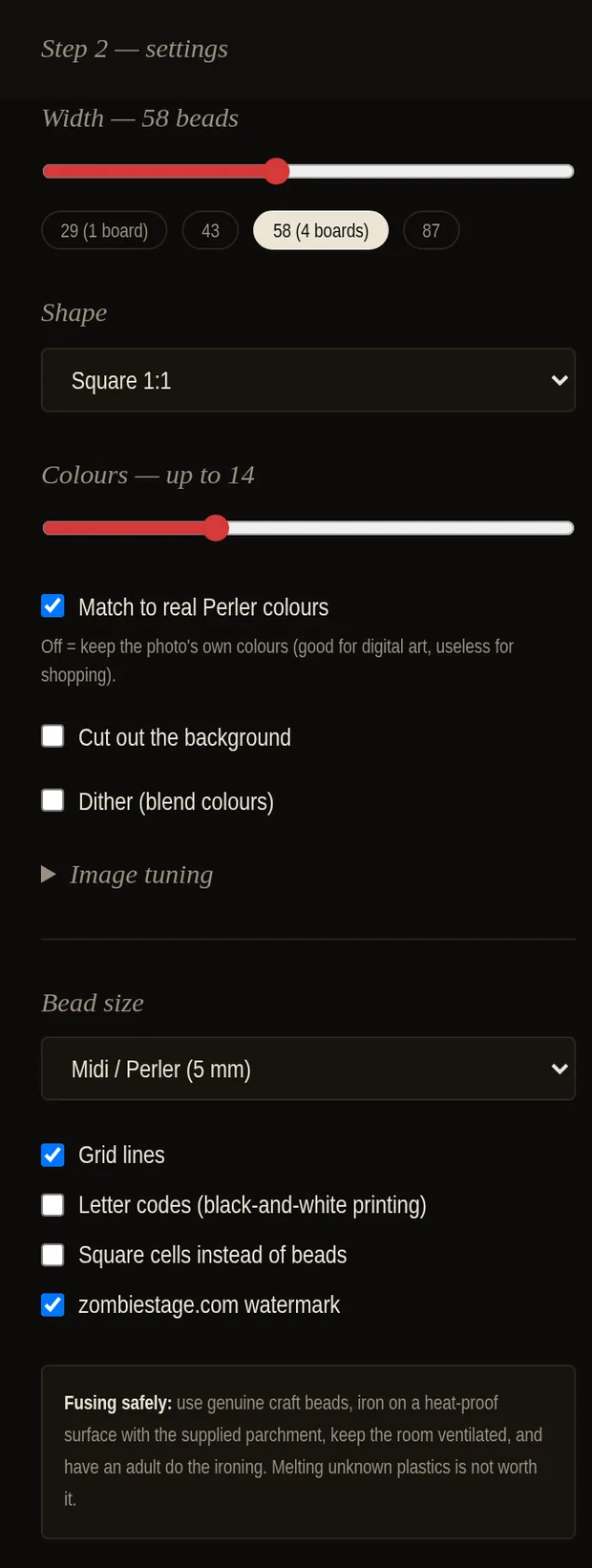
Width is measured in beads, not centimetres: 29 is one pegboard, 58 is four. Colours caps how many different beads you have to buy — 8 to 16 is the sweet spot. Leave Match to real Perler colours on so the chart lists beads that exist, switch on Cut out the background for a keyring-shaped piece, and open Image tuning if the photo needs more contrast before it is worth converting.
3. Print it, save it, or share it
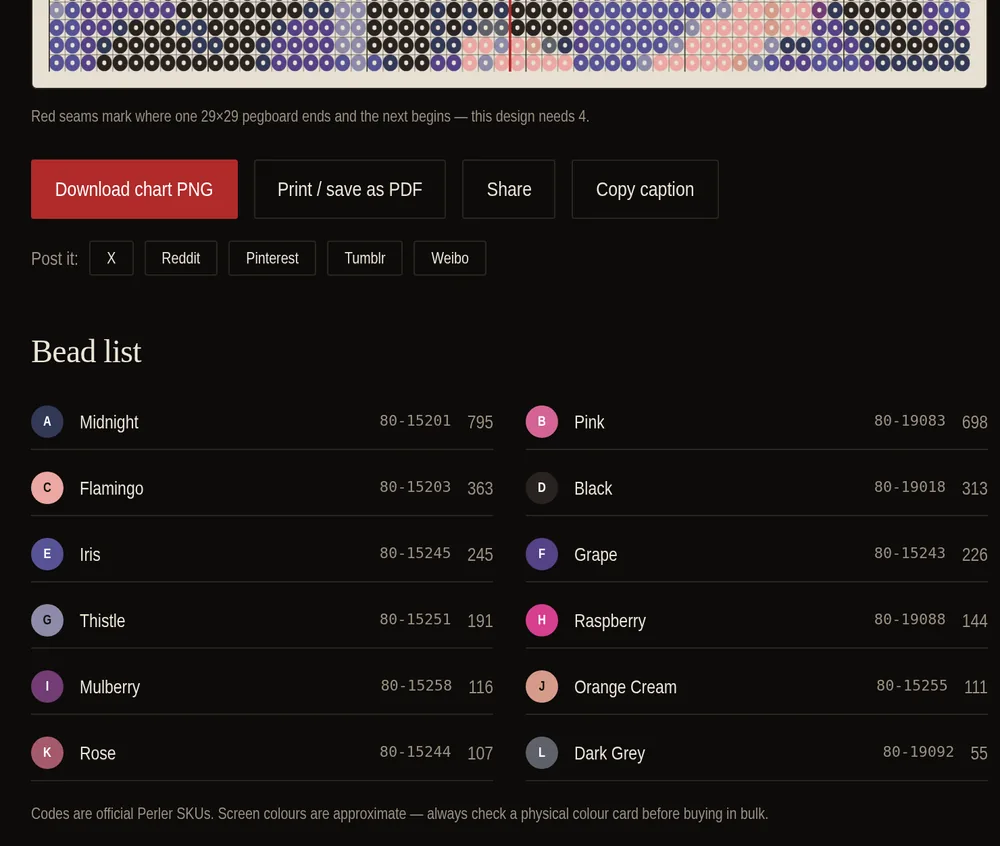
The bead list under the chart is your shopping list: every colour with its Perler SKU and exactly how many of that bead the design eats. Print / save as PDF puts the chart alone on one sheet of white paper, Download chart PNG gives you the same sheet for your phone, and the share row posts it with the credit already on the image.
How the converter works
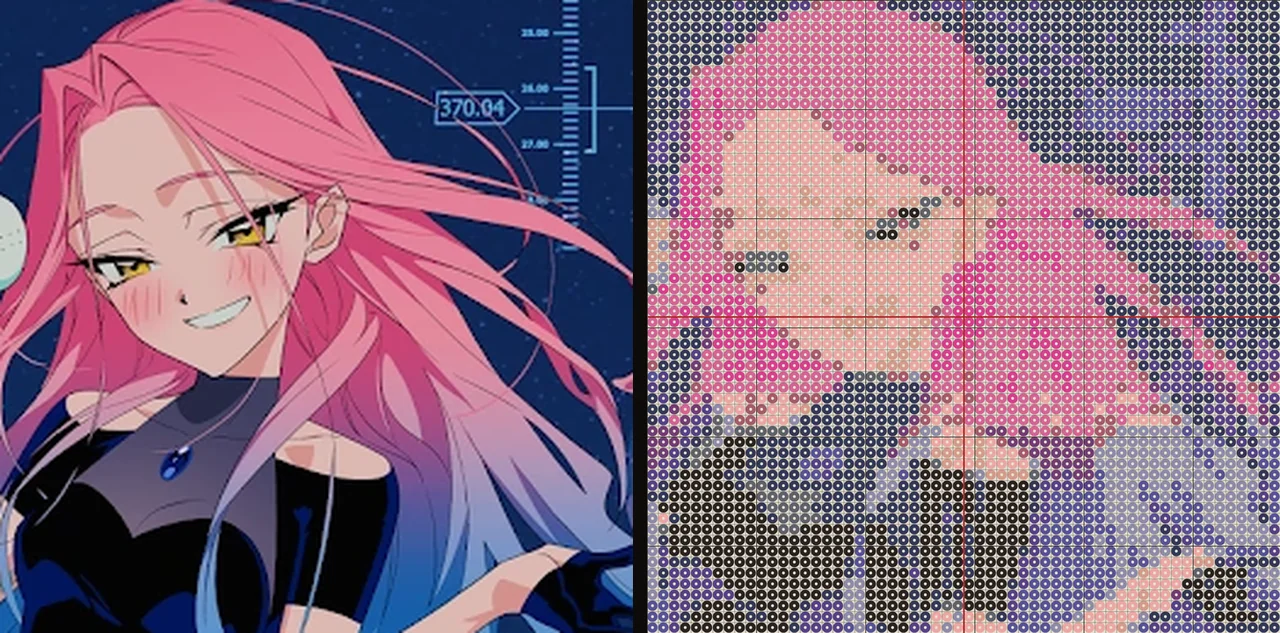
A bead chart is a hard constraint problem dressed up as a craft: you have a grid of maybe 841 pegs and a shelf of about 100 colours, and the picture has to survive the trip. The tool does it in four steps.
- Average, don't sample. Every source pixel that falls inside a bead's square is averaged together. Naive tools just scale the image down and let the browser choose a filter, which speckles the result; averaging keeps thin details as a blended tone instead of dropping them at random.
- Reduce the palette. Median-cut quantisation finds the handful of colours that best represent the whole image, splitting the busiest, widest colour ranges first so a large flat background can't eat the budget.
- Snap to real beads. Only then is each representative colour matched to the nearest Perler bead, using a perceptual distance rather than raw RGB — that is the difference between "close number" and "looks the same".
- Count everything. The legend is sorted by how many beads you need, so the top of the list is your shopping list.
Picking a size
Fuse-bead sizing is board arithmetic. The standard square pegboard is 29 × 29 pegs, and midi beads sit on a 5 mm pitch:
- 29 beads wide — one board, ~14.5 cm, ~840 beads. Chibi faces, icons, keyrings.
- 43 beads wide — two boards, ~21.5 cm, ~1,850 beads. A recognisable portrait.
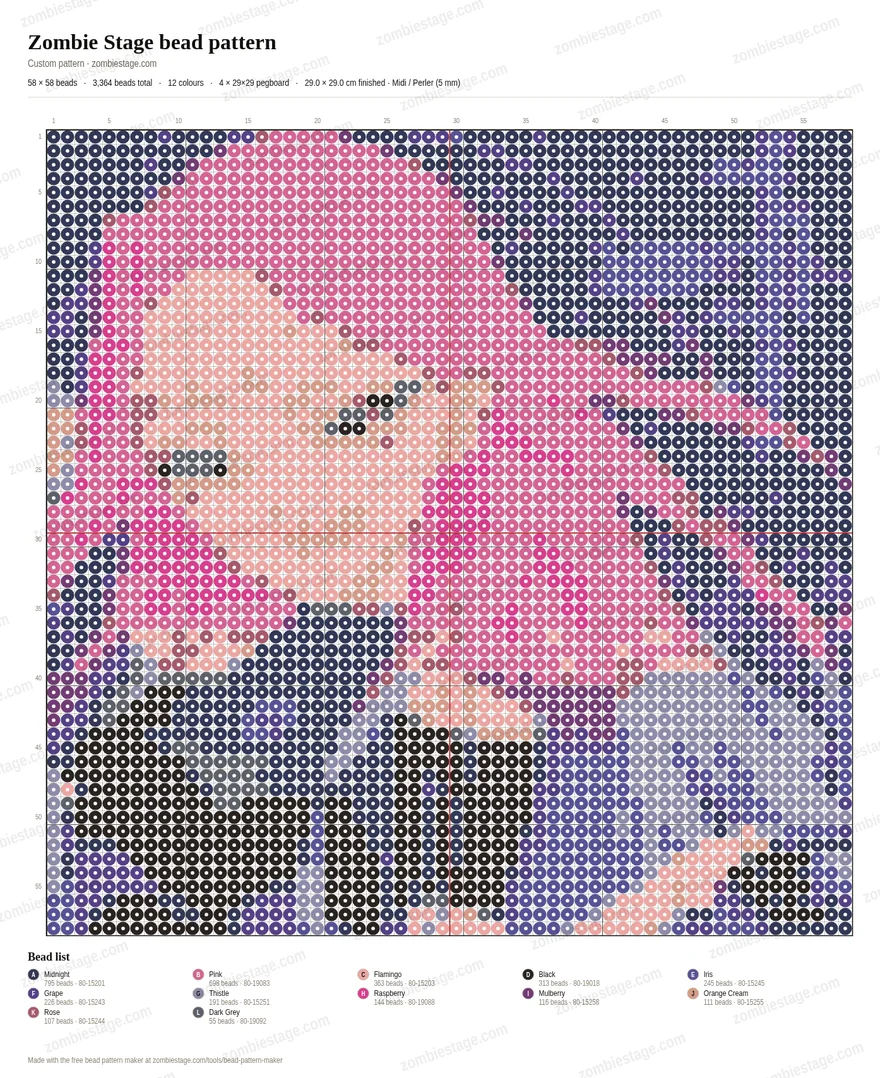
- 58 beads wide — four boards, ~29 cm, ~3,400 beads. Photographs start to read properly.
- 87+ beads wide — nine boards and a weekend. Wall pieces only.
The chart marks pegboard seams in red so you know where one board stops. Plan your joins across flat areas of colour, never through an eye.
Colour matching and colour codes
Every swatch in this tool carries Perler's own colour name and SKU, and the hex values were sampled from Perler's product photography of the loose beads rather than copied from one of the many contradictory charts floating around craft blogs. That still leaves the honest caveat: a lit photograph, your monitor and a fused bead are three different things. Treat the chart as a shortlist and check a physical colour card before ordering in bulk.
Midi beads from Hama, Artkal S and most generic kits share the same 5 mm pitch, so these charts transfer directly — only the colour names change.
Printing, sharing and building
Hit Print / save as PDF and the browser prints the chart alone on white paper — no dark site background, no navigation. If you are printing in black and white, switch on letter codes first so every bead shows a symbol from the legend. Download chart PNG gives you the same sheet as an image for your phone, and Share hands the PNG straight to your system share sheet on mobile.
Charts carry a light zombiestage.com watermark by default. You can
switch it off in the settings panel — but if you post the chart itself, leaving
the credit on is what keeps the tool free.
Ready-made character charts
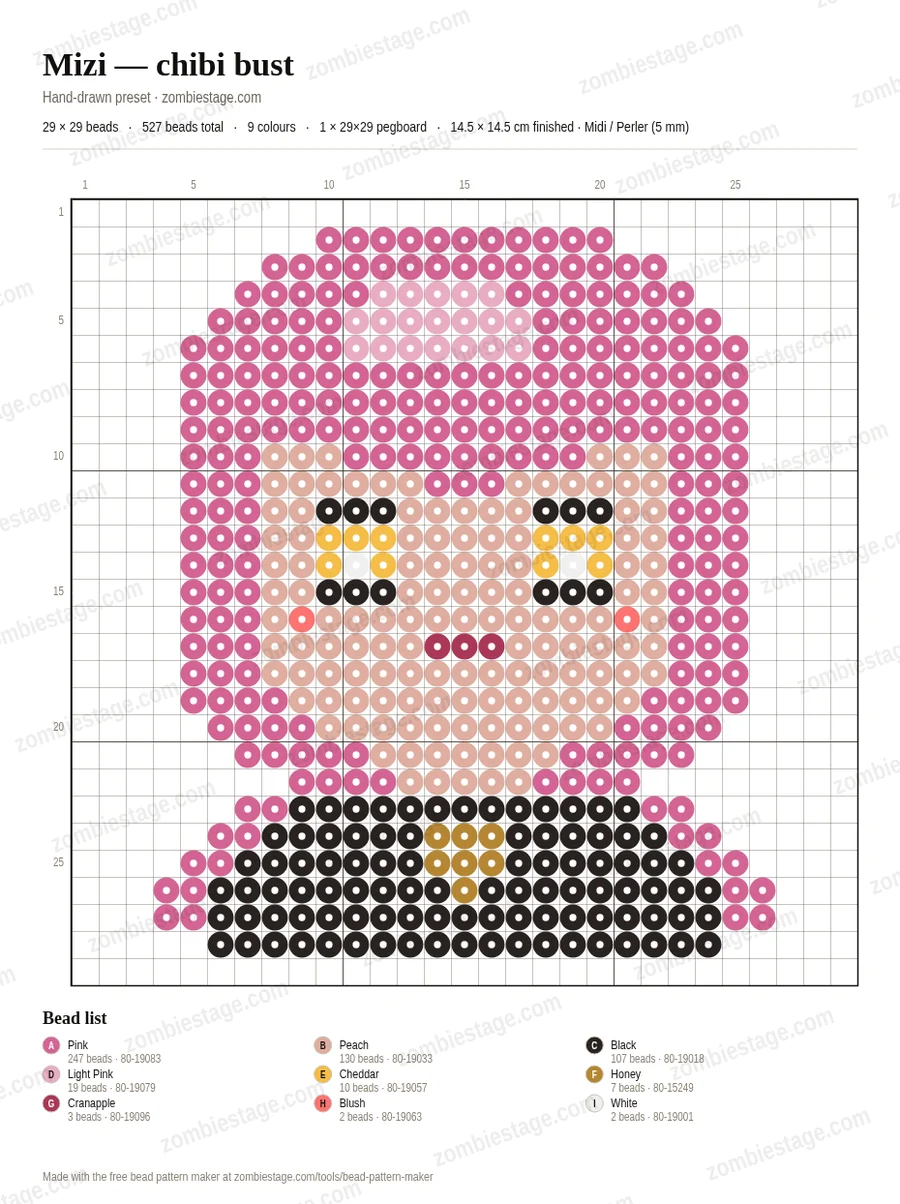
The six presets are hand-drawn pixel art, not auto-converted key art. That is deliberate: painterly full-body illustrations turn to mush at 29 × 29, so each of the six leads got a chibi bust drawn on the grid and coloured in real Perler beads. Load one, print it, and you have a one-board project.
A note on safety
Use genuine craft beads from a brand you recognise. Iron on a heat-proof surface with the parchment supplied in the kit, keep the room ventilated, and let an adult handle the iron — melting unidentified plastic is not a shortcut worth taking.
Frequently asked questions
How do I turn a photo into a perler bead pattern?
Upload the picture, pick how many beads wide you want it, and the tool averages the photo down to one bead per peg, reduces it to a small set of colours, and matches each one to a real Perler bead. You get a printable chart, a bead-by-bead count and a shopping list of colour names and SKUs. Nothing is uploaded to a server — the conversion runs entirely in your browser.
What size should my bead pattern be?
A standard square pegboard is 29×29 pegs, so 29 beads wide is the default: one board, about 14.5 cm across in midi beads, and roughly 840 beads. 43 wide spans two boards and is the sweet spot for a recognisable face. 58 wide (four boards) is where photographs start to look like the original. Anything under 20 beads wide only works for simple icons.
How many colours should I use?
Between 8 and 16. Fewer than 8 and faces flatten out; more than about 20 and you spend the whole build hunting for the difference between two nearly identical beads. The colour slider caps the palette, and the tool always spends that budget on the colours the image actually needs.
Are the Perler colour codes accurate?
The colour names and SKUs are Perler's own, and the 100 on-screen swatches were sampled from Perler's product photography of the loose beads rather than copied from a third-party chart. They are still approximations: monitors, camera white balance and fused beads never agree perfectly, so check a physical colour card before buying a big batch.
Can I print the pattern or save it as a PDF?
Yes. "Print / save as PDF" opens your browser print dialog with only the chart on the page — choose "Save as PDF" as the destination for a file, or print it directly. Switch on "Letter codes" first if you are printing in black and white, so every bead carries a legible symbol.
Is this tool free, and do you keep my photos?
Free, no signup, no watermarked upsell. Your photo is read directly by the browser tab and never leaves your device — there is no upload, no server-side processing and no storage. Closing the tab discards everything.
Which beads work with these charts?
Any 5 mm midi fuse bead — Perler, Hama, Artkal S, Yantuo and the generic pegboard kits are all the same pitch, so the chart transfers directly. The colour list is matched to Perler; other brands publish equivalence charts. Switch the bead-size selector to mini (2.6 mm) or maxi (10 mm) to see the finished dimensions for those.
Can I use the finished pattern for my own fan art?
Yes — patterns you generate are yours to build, gift and post. Please keep the zombiestage.com credit on the chart if you re-share the image itself, and do not sell mass-produced pieces based on VIVINOS characters; this is a fan tool, not a licence.
More Alien Stage tools
- OC name generator — roll an original character, then bead them.
- Kin quiz — find out whose chart you should build first.
- Line distribution maker — who sings what in every OST.
- Character profiles — reference art for your own designs.
- Gallery — official visual books and portraits worth converting.